
Choose a bio link tool
Your Instagram and TikTok bios offer only one clickable spot, but your audience may want to visit your shop, read your latest blog post, or watch a new video. A bio link tool aggregates these destinations into a single, mobile-friendly landing page. This keeps your content organized and ensures visitors don’t bounce because they can’t find what they’re looking for.
When selecting a platform, prioritize mobile optimization and analytics. Most users will click your link from a phone, so the landing page must load instantly and display correctly on small screens. Built-in analytics let you track which links drive traffic, helping you adjust your content strategy based on real data rather than guesswork.
Here is how the leading options compare across key features:
| Tool | Cost | Analytics | Customization |
|---|---|---|---|
| Lnk.Bio | Free tier available | Basic click tracking | High (themes, buttons) |
| Canva Link in Bio | Free with Canva account | Limited | High (visual design) |
| Bio Sites | Free tier available | Basic click tracking | Medium (Squarespace templates) |
Lnk.Bio offers robust customization for users who want full control over their page’s appearance. Canva is ideal if you already design graphics there, allowing you to reuse your brand assets easily. Bio Sites integrates with Squarespace, making it a strong choice for creators who also run a website. Choose the tool that aligns with your existing workflow and design needs.
Design your landing page
Your bio link is the digital storefront for your Instagram and TikTok presence. It needs to load fast, look good on mobile, and guide visitors exactly where you want them to go. A cluttered page with too many competing links often leads to confusion and lost clicks.
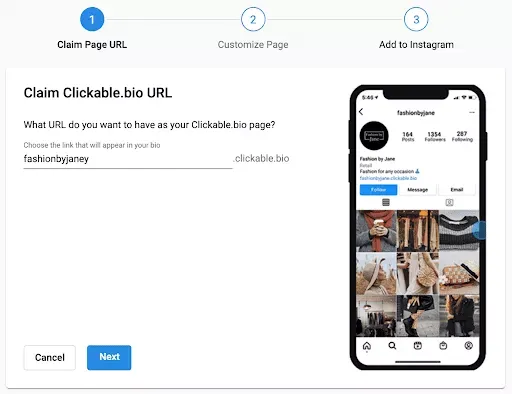
Start by choosing a clean template that matches your brand colors and aesthetic. Most bio link tools offer drag-and-drop builders that let you customize fonts, buttons, and backgrounds. Keep the design minimal; you want your content to stand out, not the interface. If you are promoting a specific product or service, make that link the most prominent element on the page.
Organize your links by priority. Place your most important link—whether it’s a new video, a shop sale, or a newsletter signup—at the very top. Group related links together so visitors can scan them quickly. Use clear, action-oriented button text like "Shop Now" or "Watch Video" instead of generic labels. This small detail can significantly improve your click-through rates.
Finally, preview your page on a mobile device before publishing. Most of your traffic will come from Instagram and TikTok, where users are on the go. Ensure buttons are large enough to tap easily and that images load quickly. A smooth, intuitive experience keeps visitors engaged and encourages them to explore your content further.
Select a template that aligns with your brand identity. Look for clean layouts that prioritize readability and ease of navigation. Customize the colors and fonts to match your social media profiles for a cohesive look.
Place your most important link at the top of the page. Use clear, action-oriented button text like "Shop Now" or "Watch Video." Group related links together to help visitors scan and find what they need quickly.
Preview your page on a smartphone to ensure buttons are large enough to tap. Check that images load quickly and the layout adjusts properly to different screen sizes. A mobile-friendly design is essential for Instagram and TikTok traffic.
Add links to your profile
Your bio link is the single address you place in your Instagram and TikTok profiles. It acts as a digital storefront, directing followers to your website, shop, or other social channels. Because these platforms limit you to one clickable URL, choosing the right bio link tool is essential for organizing your content.
Follow the steps below to paste your bio link URL into both profiles.
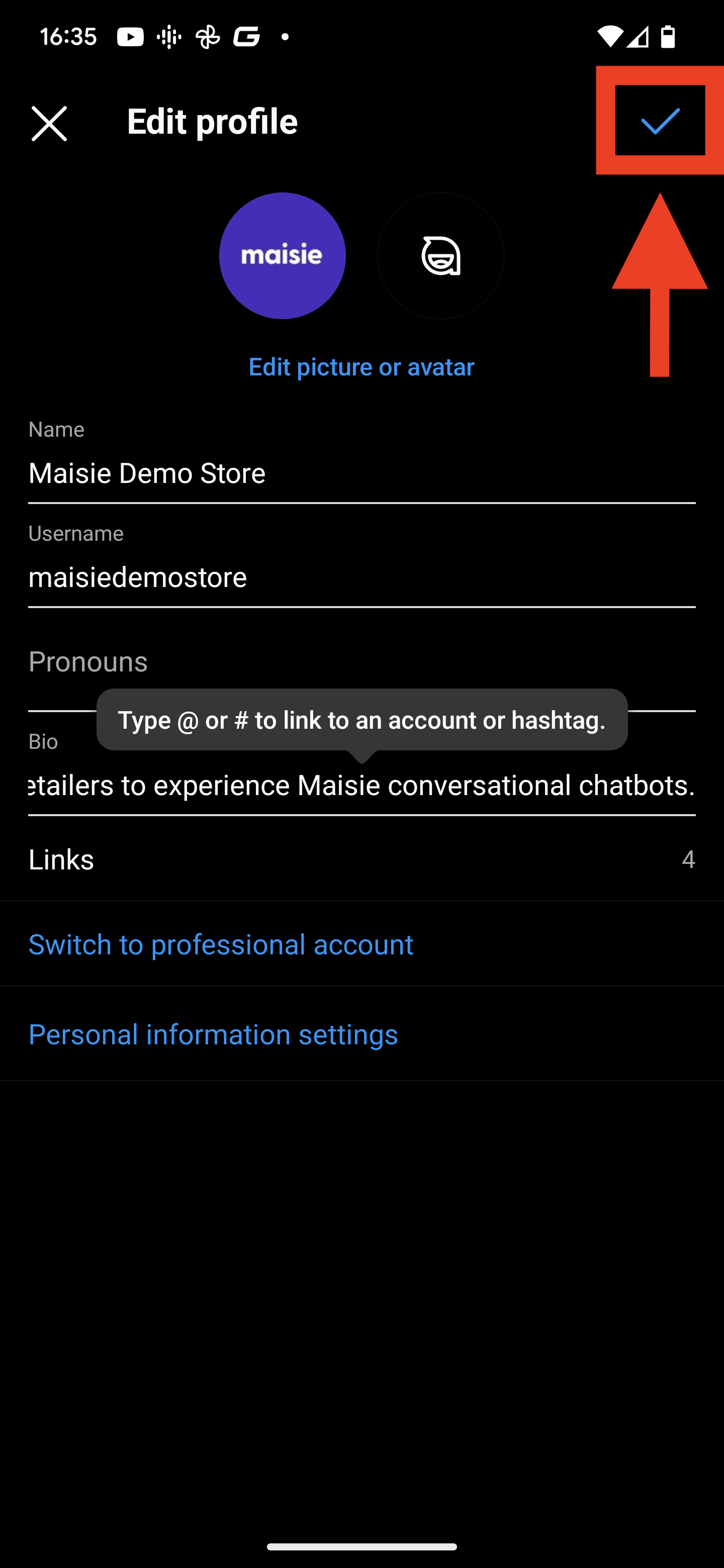
Open the Instagram app and navigate to your profile page. Tap the "Edit Profile" button located just below your bio text. Scroll down to the "Links" section and tap "Add Link." Paste your bio link URL into the field provided, give the link a title that describes where it leads, and tap "Done" to save.
Launch the TikTok app and go to your profile. Tap the "Edit Profile" button near the top of the screen. Scroll to the "Website" field and enter your bio link URL. Tap "Save" to confirm the change. Your new link will now appear in your TikTok bio.
After adding the links, verify them by tapping the URLs in your profiles to ensure they direct to the correct destination. Keep your bio link URL updated whenever you launch new campaigns or change your primary call to action.
Track and improve performance
Analytics turn guesswork into strategy. Without data, you’re flying blind about which links actually drive traffic. The goal is to identify high-performing assets and cut what isn’t working. Treat your bio link page like a funnel: every click is a step toward a sale, a follow, or a sign-up.
Start by reviewing your click-through rates (CTR) weekly. Look for links that consistently underperform. If a product link gets zero clicks, the call-to-action might be weak, or the timing is off. Swap it out for a trending item or a high-value resource. Small tweaks compound over time.
Use a link-in-bio tool that offers granular analytics. Basic platforms show total clicks, but advanced tools break down data by device, location, and time of day. This helps you understand your audience’s habits. For example, if most traffic comes from mobile at 8 PM, schedule your posts to align with those peak hours.
Performance Review Checklist
-
Review weekly click data to spot trends.
-
Replace underperforming links with fresh content.
-
Check device-specific performance for mobile optimization.
-
A/B test headlines or button colors monthly.
-
Export reports to track month-over-month growth.
Common bio link mistakes
Even with the right tool, small errors in your bio link setup can cost you clicks and sales. Most creators treat their link page as an afterthought, but it functions as your digital storefront. If the entrance is cluttered or broken, visitors leave before they see what you offer. Avoiding these pitfalls keeps your traffic flowing smoothly from Instagram and TikTok to your actual destination.
Using too many links
A common mistake is dumping every social profile, podcast episode, and blog post into one bio link page. This creates decision paralysis. When visitors see ten options, they often choose none. Keep your bio link page focused on one or two primary goals, such as a new product launch or a newsletter signup. Remove outdated links immediately to maintain relevance.
Broken or untracked URLs
Nothing kills credibility faster than a 404 error. If your bio link points to a dead page, you lose trust instantly. Additionally, failing to use UTM parameters or built-in analytics means you are flying blind. You won’t know which TikTok video drove traffic or which Instagram post generated a sale. Always test your links regularly and monitor click-through rates to see what works.
Ignoring mobile optimization
Over 90% of social media traffic comes from mobile devices. If your bio link page loads slowly or requires horizontal scrolling, users will bounce. Ensure your link-in-bio tool uses a responsive template that loads quickly on cellular networks. Large images and heavy scripts slow down the experience. Keep text concise and buttons large enough for thumb taps.
Review every URL on your page. Click each one to ensure it leads to a live, relevant destination. Delete any that are broken or outdated.
Look at your analytics. Move your highest-converting links to the top of the page. Place less important links lower down or remove them entirely.
Open your bio link page on a smartphone. Check that buttons are easy to tap and text is readable without zooming. Fix any layout issues before posting.
Frequently asked questions about bio links
Bio links solve the "one link" limit on Instagram and TikTok. They let you share multiple destinations from a single URL. This section answers common questions to help you set up and manage your links effectively.
No comments yet. Be the first to share your thoughts!